Dictation That Does More Than Type
Mumble Dictation goes beyond speech-to-text. Pick your output with a keypress: clean text, bullet points, custom rewrites, or web search. One hotkey, any Mac app.
Updated August 25, 20267 min
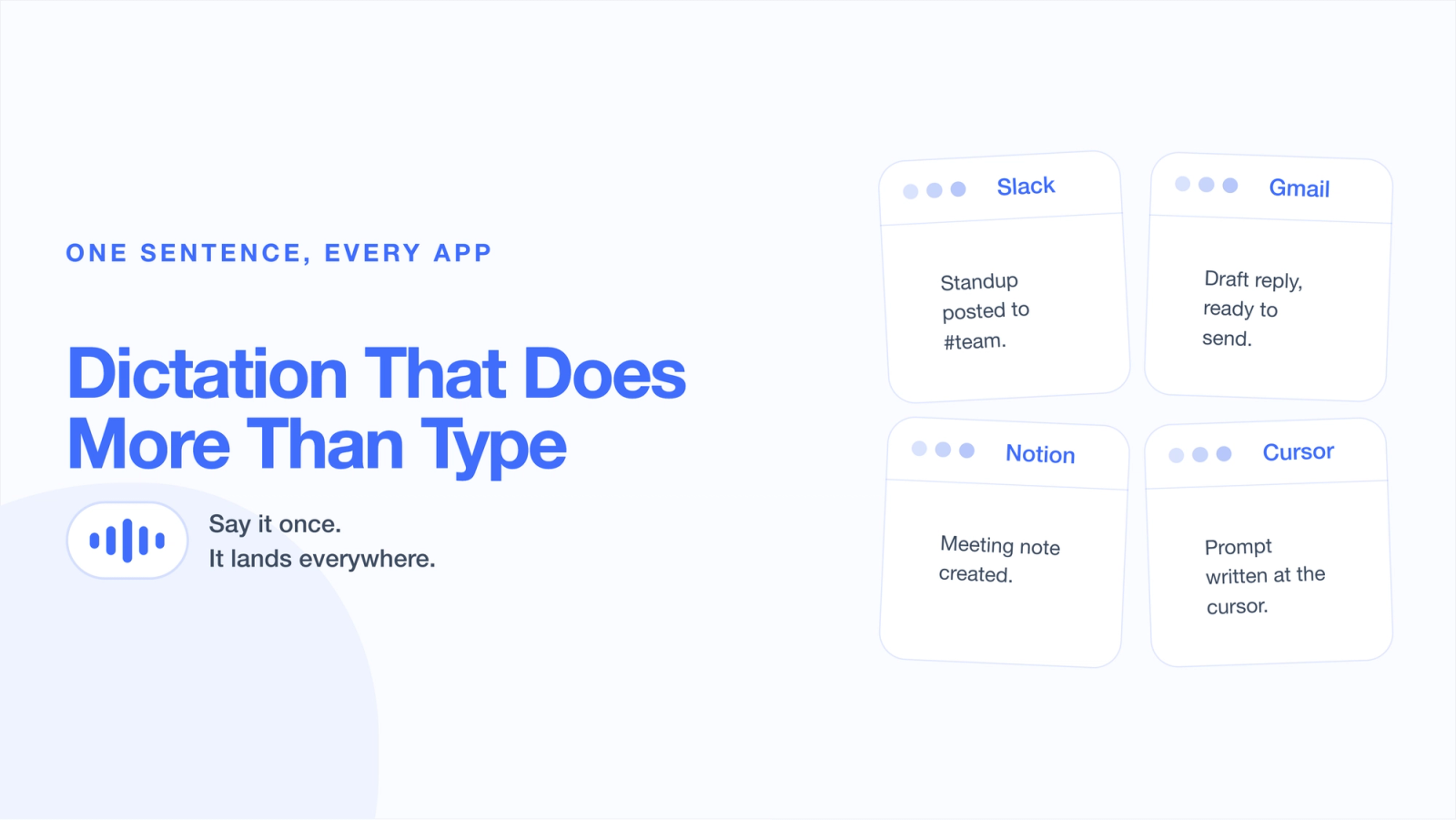
Dictation used to be simple: you speak, it types. The best you could hope for was accuracy and speed. Did the tool get your words right, and did it get them down fast?
That bar is not enough anymore. A language model can understand not just your words but what you meant to do with them, so dictation should be able to hand you the right format for the moment, or act on what you said, without a second tool. That is the idea behind Mumble Dictation: hold one key, speak, and choose what your words become before they land.
What Mumble Dictation is
Mumble Dictation is a Mac app that types what you say into any app with a text field: Mail, Slack, Notion, Google Docs, your browser, Cursor, VS Code. There is no transcription window and no copy-paste. Hold the fn key (or any key you assign), talk, release, and the finished text is sitting where your cursor was.
Two models do the work, and both run on your Mac. A voice model turns your speech into words. A language model then cleans those words up: filler out, punctuation in, self-corrections resolved, paragraphs added on longer takes. On an Apple Silicon Mac with 16GB of memory or more, both steps happen on-device, so your audio and your text never leave the machine and dictation works with the Wi-Fi off. It understands 40+ languages, detects them automatically, and copes when you switch languages mid-sentence.
That is the baseline. What makes it more than a dictation tool is what happens while you are still holding the key.
Choose your output with AI Actions
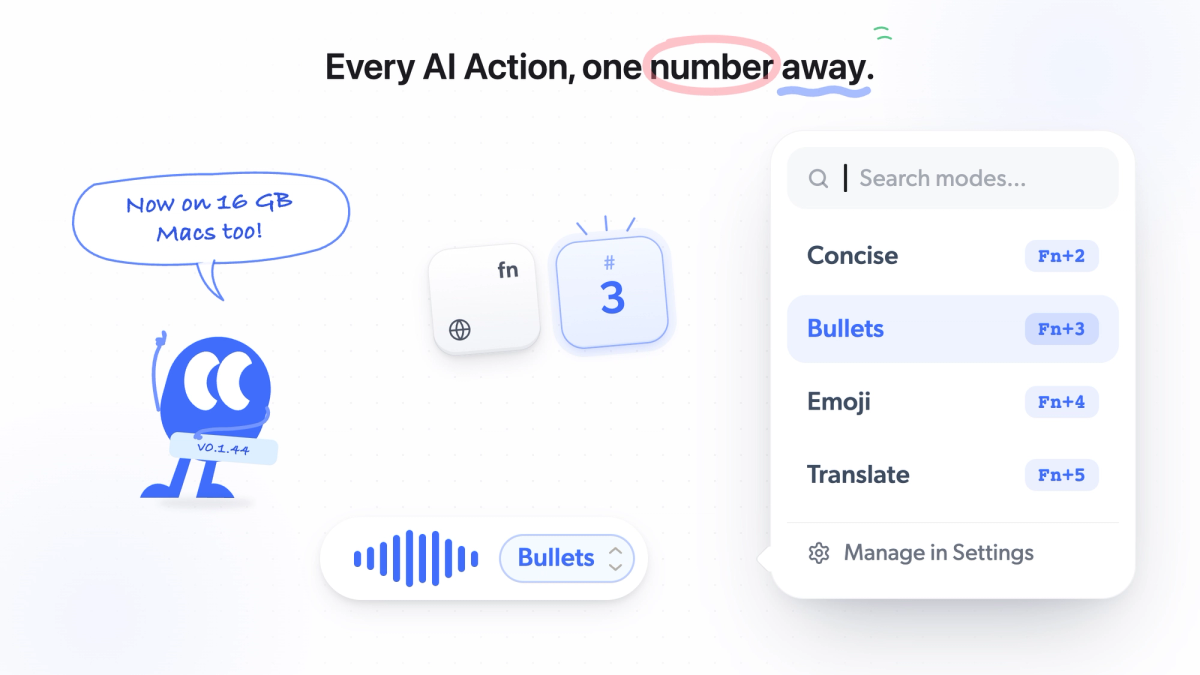
While the fn key is held, a small panel shows your AI Actions. Tap a number key (arrow keys work too) to pick one, and that action is applied to what you just said before it reaches your cursor. Cleanup is always Fn+1; every other action takes the next digit, Fn+2 through Fn+9, in the order you arrange the list. There are three groups.
Transform: reshape the same words
Cleanup (Fn+1) is the default and runs on every dictation unless you pick something else. "um okay so, i'll be like ten minutes late, sorry sorry, traffic is is really bad" comes out as "I'll be about 10 minutes late, sorry. Traffic is really bad." Your phrasing stays yours; only the noise is removed.
Concise trims to the essentials with the same meaning. Useful when you rambled your way to a point and only want the point.
Bullets restructures your speech into a list, in the order you said things. Brainstorms, to-do lists, notes you are about to share.
Emoji drops a fitting emoji at the end of what you said, then opens a picker in case it guessed wrong.
Translate turns your words into your default target language. Dictate in English, land in Spanish, Japanese, or any of 40+ options. Set the target once; change it whenever you like.
Custom prompt: write the instruction yourself
Custom prompts apply an instruction you wrote. "Rewrite as a professional email." "Summarize in two sentences." "Remove anything negative and soften the tone." You can save more than one; each joins the panel with its own number key. It is the same idea as Cleanup, except you decide what clean means for this particular message.
Voice actions: do something instead of typing
This is where dictation leaves the text box entirely.
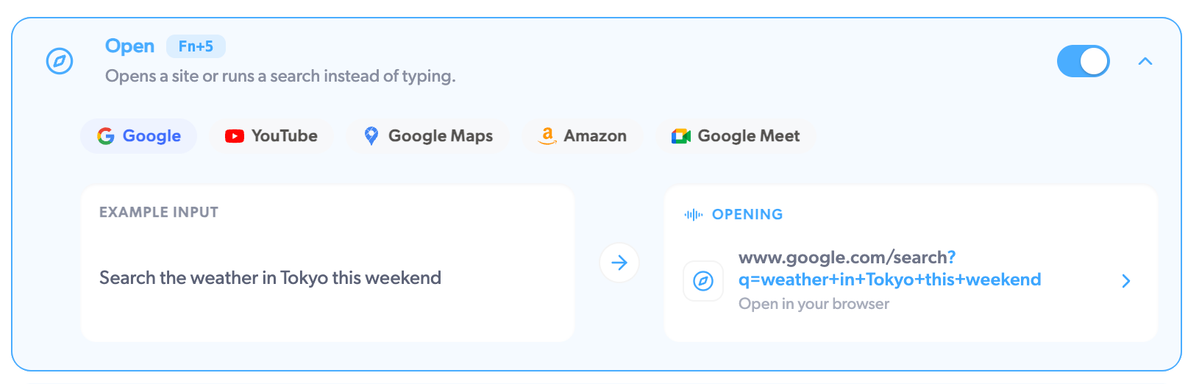
Open opens a website or runs a search based on what you said. "Search Amazon for a 27-inch monitor" opens Amazon with the results. "Nvidia stock price" opens Google with the answer. It works with Google, YouTube, Google Maps, Amazon, and Google Meet, and one spoken sentence replaces opening a browser, finding the search bar, and typing.
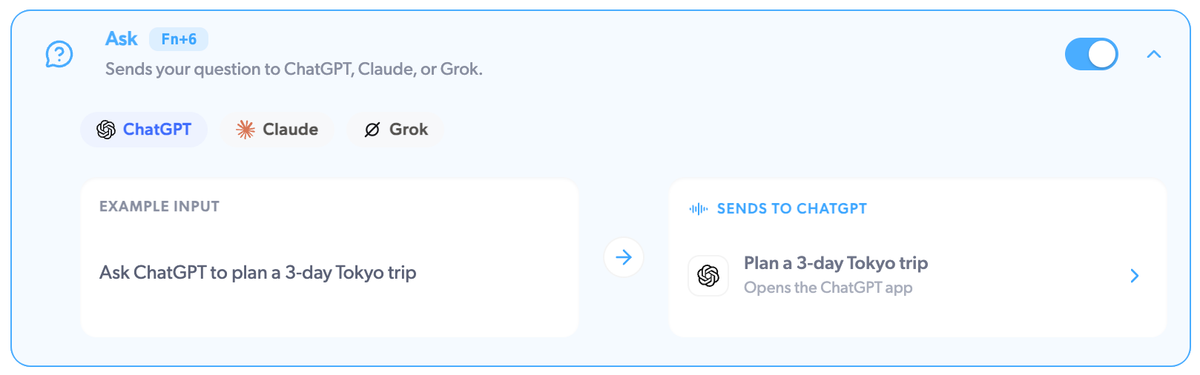
Ask sends your question to ChatGPT, Claude, or Grok. The chat opens as the reply is already coming in. Dictate the question the way you would say it to a colleague, and skip the tab-switching.
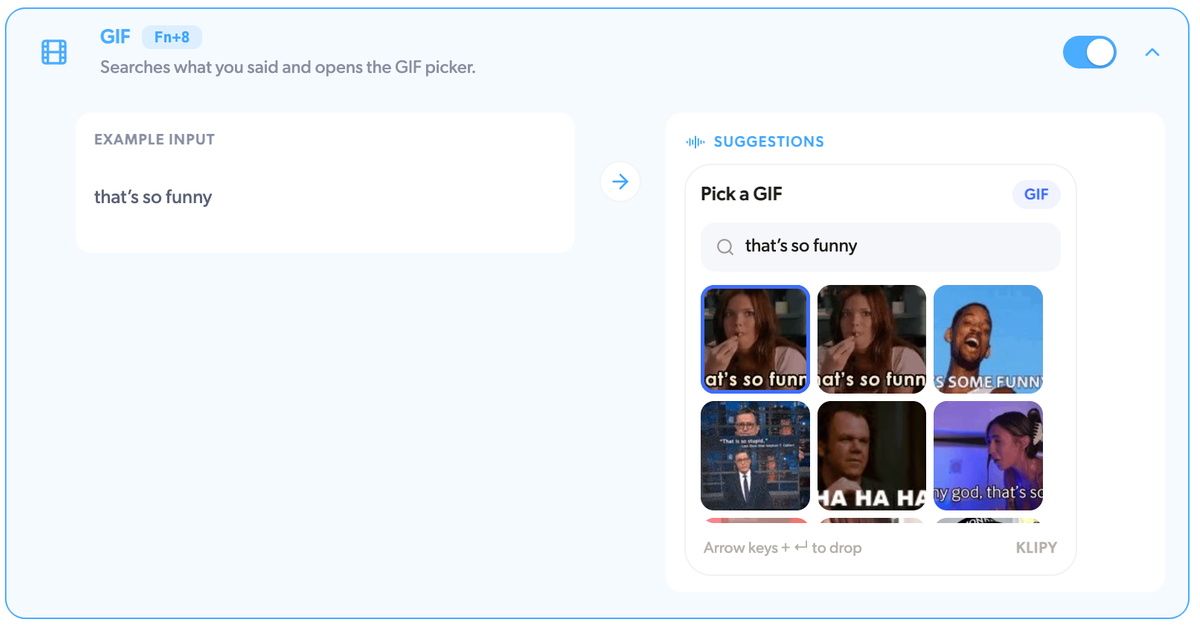
GIF searches what you said and opens a GIF picker. Say "friday mood", pick one, and it drops into Slack.
The full list of actions is on the Mumble Dictation page, and new ones show up in the release log as they ship. Transcription is free and unlimited; AI Actions are part of Pro, and every download starts with a 60-minute Pro trial so you can try all of them.
Hands-free for the long take
Some thoughts do not fit in a held key. Double-tap fn instead of holding it and Mumble keeps listening while you pace, think, and circle back. Tap Return when you are done and the whole take lands as one piece, cleaned up. It is the mode for the two-paragraph reply, the voice memo you would otherwise never transcribe, and the brief you want to talk through before you write it.
All of it on your Mac
Most tools that clean up your speech send it to a server to do it. Mumble Dictation runs the language model locally, so Cleanup, Concise, Bullets, Translate, and your custom prompts happen on the same machine that heard you. None of your words are uploaded, your dictations are stored nowhere but your Mac, and none of it trains anyone's model.
The hardware line is 16GB of memory. Above it, everything runs on-device. Below it, transcription still stays local, and you can plug in your own AI provider key so cleanup and Transform actions run on that provider instead. Even then, only text goes where you point it; audio never does. Open and Ask need a connection by definition, because they talk to a website or an AI service; everything else works offline. If you are weighing this against cloud dictation tools, the best dictation software for Mac roundup and the Wispr Flow alternatives guide go through the trade-offs in detail.
Who this is for
Mumble Dictation works for anyone who types on a Mac, but a few workflows benefit more than others.
Founders and managers drafting Slack updates, investor replies, and emails between meetings. Hold fn, say it, tap Concise if you went long, move on.
Writers and content creators capturing first drafts at speaking speed. Bullets for an outline, a custom prompt for your house tone.
Multilingual professionals who think in one language and write in another. Dictate in English, tap Translate, land in Mandarin. Or dictate in two languages at once and let Mumble sort it out.
Developers speaking prompts into Cursor or Claude Code. Function names, product terms, and acronyms go into the Dictionary once and come out spelled right after that.
Lawyers, doctors, and consultants who cannot let audio leave the building. Case notes and client memos are cleaned up on the machine that recorded them.
Anyone who finds typing painful. One key, any app, and the same voice that writes the message can also open the site or ask the question.
How to get started
- Download Mumble Dictation from heymumble.com/dictation. No account needed.
- Open the app and grant the two permissions it asks for: Microphone, so it can hear you, and Accessibility, so it can type into other apps.
- Download the on-device models when prompted. If your Mac has less than 16GB of memory, you can instead add your own AI provider key under Settings.
- Once the models are ready, go to any app, hold fn, and start talking.
- While holding fn, tap a number key to pick an AI Action. Release, and the result appears at your cursor.
Your dictation shortcut can be changed from the Home screen or from Settings in the bottom-left corner, and Hands-free has its own shortcut row. To manage AI Actions, open Settings, turn actions on or off, reorder them (the panel and the number keys follow the order you set), and add custom prompts with the Add button.
Speak once, get the result you need
Dictation has been stuck in one loop for years: speak, get text, edit. The transcription got better, the loop stayed the same. Mumble Dictation is built on the other side of that loop: the model already understands what you said, so it might as well format it, translate it, look it up, or hand it to an AI assistant while it is at it. Say the thing once, pick what happens to it, and get back to work.